
MCP connector
Pictures, videos and voice-overs, made in Claude with UPQAR
Add UPQAR to Claude as a connector, and Claude can make pictures, videos and voice-overs for you with your UPQAR credits, right from the chat.
Paste it exactly as it is here.
Any other AI app that supports MCP with sign-in can connect too, with this same address.
Ideas to try in Claude
A falcon in close-up
Use UPQAR to make a 10-second video in 16:9: a falcon's head in close-up against a clear blue sky, its feathers stirring in the wind as it turns towards the camera. Warm late-afternoon light, a shallow depth of field and a slow push in.
The pictures and clips are UPQAR's own. Each prompt is an idea to give Claude, not the one its picture was made with.
What you can make
The pictures and clips are UPQAR's own. Each prompt is an idea to give Claude, not the one its picture was made with.

A flight over an old city
Use UPQAR to make a 10-second video in 16:9: a slow flight over the flat rooftops of an old stone city at sunset, minarets on the skyline and a warm haze in the air.

Horses in the dust
Use UPQAR to make an 8-second video in 16:9 of black horses galloping in slow motion through dust lit from behind, the camera low beside them. Tell me what it will cost before you make it.

A moment for an ad
Use UPQAR to make a 6-second video in 16:9 for a theme park ad: two people laughing on a roller coaster as it races along, desert mountains behind them, in bright midday sun.

A portrait from another age
Use UPQAR to make a portrait: a woman in a café of the 1920s, smiling as she looks away, a string of pearls at her neck and warm lamplight behind her, with the grain of 35 mm film.

A picture for Founding Day
Use UPQAR to make a picture for Founding Day: a Najdi mud-brick fort with white crenellations, palm trees below it and the old town behind, in clear morning light.

Your words, improved first
Use UPQAR to improve this description before anything is made: “a camel at the door of a mud house at night”. Show me how UPQAR would rewrite it, and make the picture only once I agree.
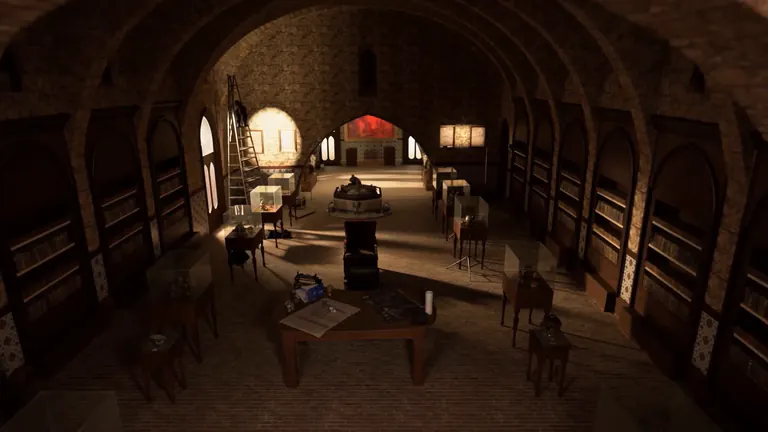
A narrator for your film
Write a 30-second Arabic narration about the history of an old library, then use UPQAR to make it a voice-over in a deep, slow voice.

A voice for a spring sale
Write a 15-second ad in Arabic for a spring sale, bright and friendly, then use UPQAR to make it a voice-over. Tell me what it will cost first.

A video that starts on your picture
Use UPQAR to find my latest picture of the desert in my projects, and make a 6-second video in 16:9 that starts on it as its first frame, the camera moving slowly forward over the sand.

The same person, a new place
Use UPQAR to edit my picture of a man reading, from my projects: keep him and his book as they are, and set him in a long glass corridor full of morning light, with pages drifting in the air.
The models Claude can use
Claude can use every model UPQAR has on sale for pictures, picture edits, videos and voice-overs, each named as on UPQAR's own pages. Their prices are on the pricing page.
Pictures
- Seedream 5.0 Pro
- Nano Banana 2
- Nano Banana 2 Lite
- Seedream 5.0 Lite
- Seedream 5.0 Flash
- Seedream 4.5
- Seedream 4.0
- Kling Image 3.0
- Kling Image 3.0 Omni
- Kling Image O1
- Kling Image 2.1
- GPT Image 2
- GPT Image 2.5 Flare
- GPT Image 2.5 Sunburst
- Nano Banana 2.1
- Nano Banana Pro
Picture edits
- Seedream 5.0 Pro
- Seedream 5.0 Lite
- Seedream 5.0 Flash
- Seedream 4.5
- Seedream 4.0
- Kling Image 3.0
- Kling Image 3.0 Omni
- Kling Image O1
- Kling Image 2.1
- Nano Banana 2.1
- Nano Banana Pro
Videos
- Seedance 2.0
- Seedance 2.5
- Seedance 2.0 Fast
- Seedance 2.0 Mini
- Kling 3.0
- Kling 3.0 Omni
- Kling 3.0 Turbo
- Kling O1
- Kling 2.6
- Kling 2.5 Turbo
Voice-overs
- Eleven v3
- Flash v2.5
- Eleven v4
- Eleven v4 Turbo
How to connect
On a Team or Enterprise plan, an Owner adds UPQAR once for everyone in Organization settings › Connectors, and each member then presses Connect beside it in Customize › Connectors. On Claude's Free plan, you can add one custom connector.
Once connected, Claude is listed in Connected apps with what it may do and what it has spent, and you can disconnect it there.
- 1
Press Open Claude's connectors. Claude opens Add custom connector with the name UPQAR and the address already filled in. Sign in to Claude first if it asks.
If they are not filled in, press + Add, then Add custom connector, type the name UPQAR and paste the address.
- 2
Check the name and the address, then press Continue. If Claude asks how people sign in, keep what it found and press Continue again. Then press Add.
- 3
Press Connect beside UPQAR. UPQAR's page opens: log in to UPQAR if it asks.
- 4
UPQAR's page shows what Claude may do. Make things starts unticked: tick it if Claude may spend your credits, and check the daily limit that appears under it. Add files and Preview improved prompts, if Claude asks for them, start ticked. Untick what you do not want, then press Allow.
- 5
You are back in Claude, connected. In a chat, Connectors under the + button turns UPQAR on or off.
What Claude can do once connected
Depending on what you allow on UPQAR's page:
Your projects
See your projects, their files and what your jobs made, and start a new project.
UPQAR's models
See UPQAR's models and their options, to choose one for what you ask.
Prices and your balance
Tell you your balance, and what a picture, video or voice-over will cost before it is made.
Pictures, videos and voice-overs
Make them with your credits, each only after you have seen its price and said yes.
Your pictures as references
Use a picture from your projects as the one to edit, as a reference, or as a video's first or last frame.
Your jobs
Follow a job until it is done, and cancel one that is still waiting.
Preview improved prompts
Show you how UPQAR would improve a picture or video prompt, before anything is made.
Add files
Give you a link to your Add files page to add a picture, a video or a sound, and find it there once you have.
Claude cannot share anything in your account, and it cannot take a file straight from the chat.
What it costs
Claude makes things with the credits in your UPQAR account, the same balance you use on UPQAR, at the price UPQAR's own pages show for the same request. It shows you the price of each picture, video or voice-over first, and makes it only once you say yes.
Daily limit, in credits
The most Claude can spend in any 24 hours. It does not reset at midnight: each amount it spends stops counting 24 hours later.
If you let Claude make things, UPQAR's page asks you to set a daily limit in credits when you connect.
You stay in control
Nothing is connected until you press Allow on UPQAR's own page, which shows each of these that Claude asks for:
- See your account
- It can see your projects, your files, prices and how many credits you have. This is always included.
- Make things
- It can make pictures, videos and voice-overs for you with your credits, each only after you have seen its price and said yes. It can also make projects and cancel a job that is still waiting. It cannot delete or share anything.
- Add files
- It can add pictures, videos and sounds you give it to your UPQAR files, in its own project, to use them in what it makes. Adding a file spends no credits; files count toward your storage.
- Preview improved prompts
- It can show you how UPQAR's prompt improver would rewrite a prompt, before anything is made. A preview spends no credits; each one counts toward your hourly limit on prompt improvements.
- See your boards
- It can see your boards in Canvas, the boxes on them and the files their runs saved. It changes nothing and spends no credits.
- See your Studio projects
- It can see your Studio projects, their scenes and their media files. It changes nothing and spends no credits.
- Change your Studio projects
- It can rename your Studio projects, add, rename, reorder and remove their scenes, and add your UPQAR files to them as media or remove them. A scene or file it removes can be brought back, and it cannot delete a project. It spends no credits; files it adds count toward your storage.
- Change your Studio timelines
- It can add and change captions in the timelines of your Studio scenes, and move, trim and remove the clips and captions there. A clip or caption it removes cannot be brought back. It spends no credits.
- Edit pictures and clips
- It can edit your pictures and clips for you with your credits, using UPQAR's editing tools, each only after you have seen its price and said yes. Each edit makes a new file, and yours is kept as it is.
- Organize files and projects
- It can move your files between your projects, or out of them, and rename your projects. It spends no credits and deletes nothing.
- Delete files and projects
- It can delete your files, move your projects to the trash and bring them back, and remove its own jobs that made nothing. A deleted file cannot be brought back; a project in the trash can.
Everything Claude sees or makes in your UPQAR account also passes through Claude's own service, under its terms as well as ours.
Questions and answers
What is MCP?
MCP, the Model Context Protocol, is an open standard that lets an AI app such as Claude use another service's tools. UPQAR's connector gives Claude UPQAR's tools, as far as you allow.
Which AI apps can connect?
Claude, and any other AI app that supports MCP with sign-in. Claude is the one UPQAR has tested: UPQAR is added in it as a custom connector, by the steps on this page. Another app connects with the same address.
Do I need a UPQAR account?
Yes. When you press Connect in Claude, UPQAR's page asks you to log in first.
How is it added on a Claude Team or Enterprise plan?
On a Team or Enterprise plan, an Owner adds UPQAR once for everyone in Organization settings › Connectors, and each member then presses Connect beside it in Customize › Connectors. On Claude's Free plan, you can add one custom connector.
How do I change what Claude may do?
A connection keeps what you allowed when you made it. To allow something else, connect UPQAR again from Claude and choose again on UPQAR's page. You can change its daily limit at any time in Connected apps.
How do I disconnect Claude?
Once connected, Claude is listed in Connected apps with what it may do and what it has spent, and you can disconnect it there.
Claude will lose access to your UPQAR account at once. Anything it has already asked UPQAR to make still goes ahead and is charged as usual, and the results stay in your account.